

The following explains how the point system rewards points to members when they top up their accounts or purchase from Shop. You can use points to upgrade a member from one group to another group (at a cheaper price).
- Members get 1 point for each $1 (or your local currency)
- Points can generated by Topup member account and by purchase products in SHOP as member
- Points keep accumulating on the account even if the points function is disabled.
- To enable the point system, go to the Promo page - Settings and select enable in the point function option and click the “Save” button (Figure 1).
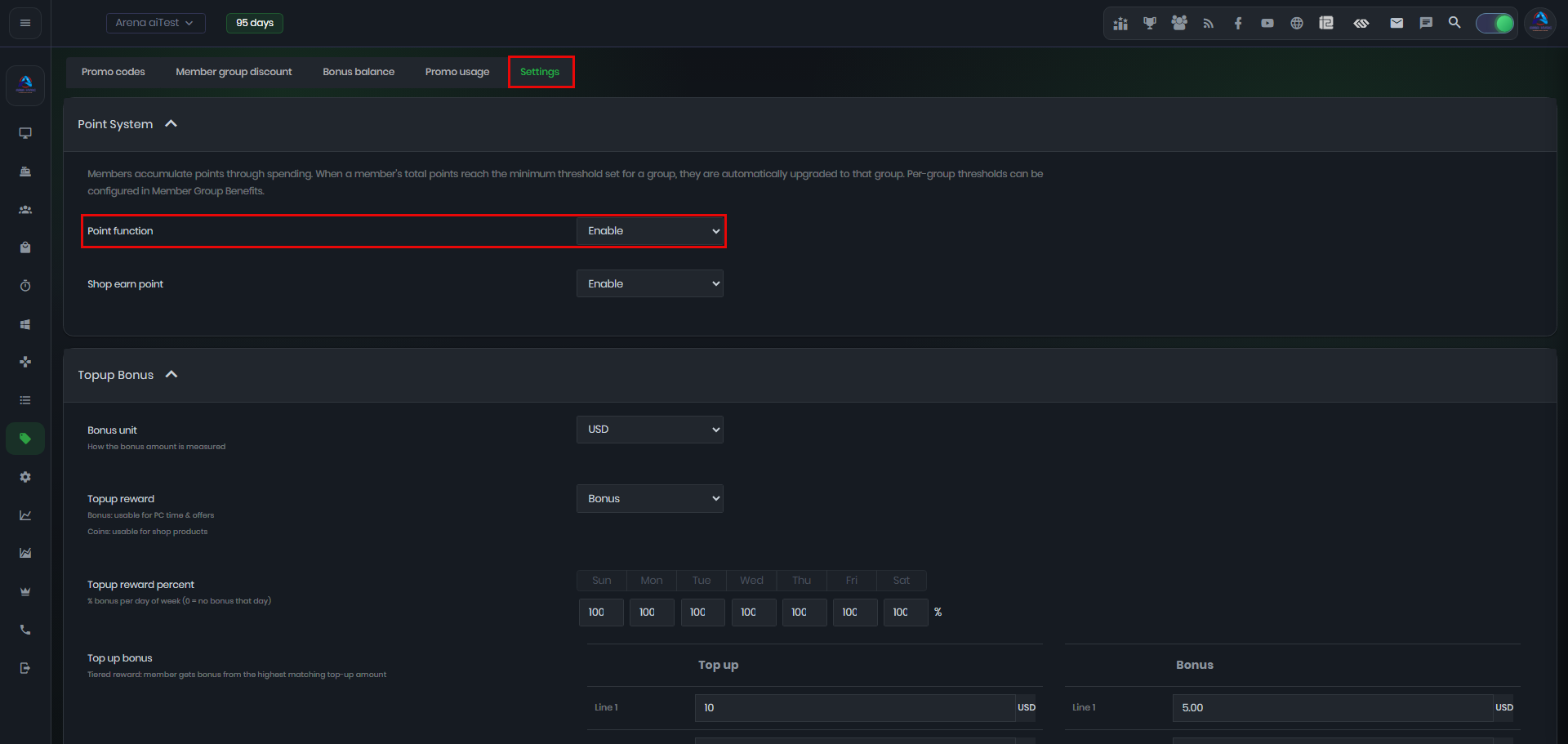
Figure 1
- To allow members to earn points from each shop purchase in the loyalty page, go to “Shop earn points” and set it to Enable , the function is disabled by default. (Figure 2)
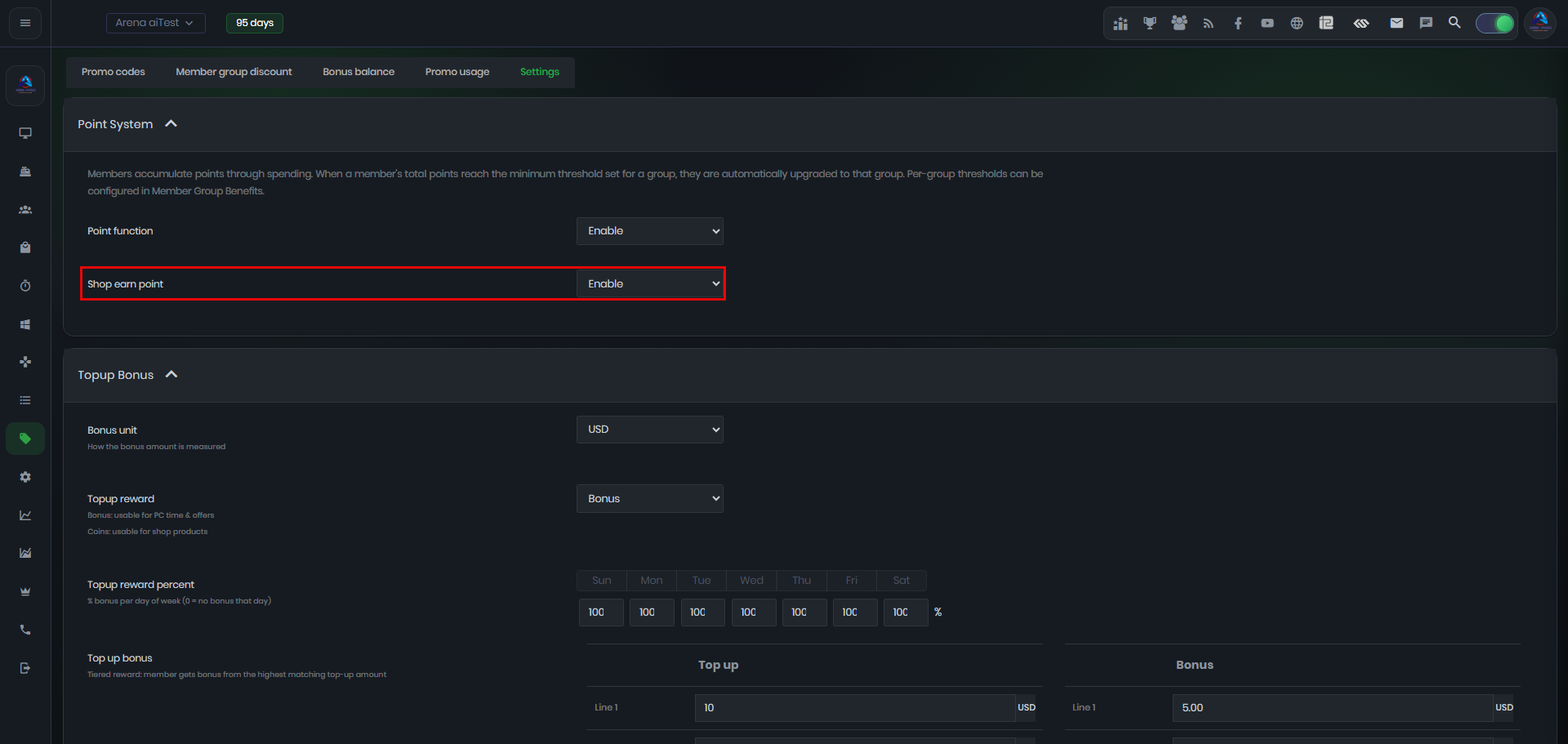
Figure 2
- Once the points function is enabled, you can view the accumulated points for a member in the Members page under the Points column.(Figure 3)
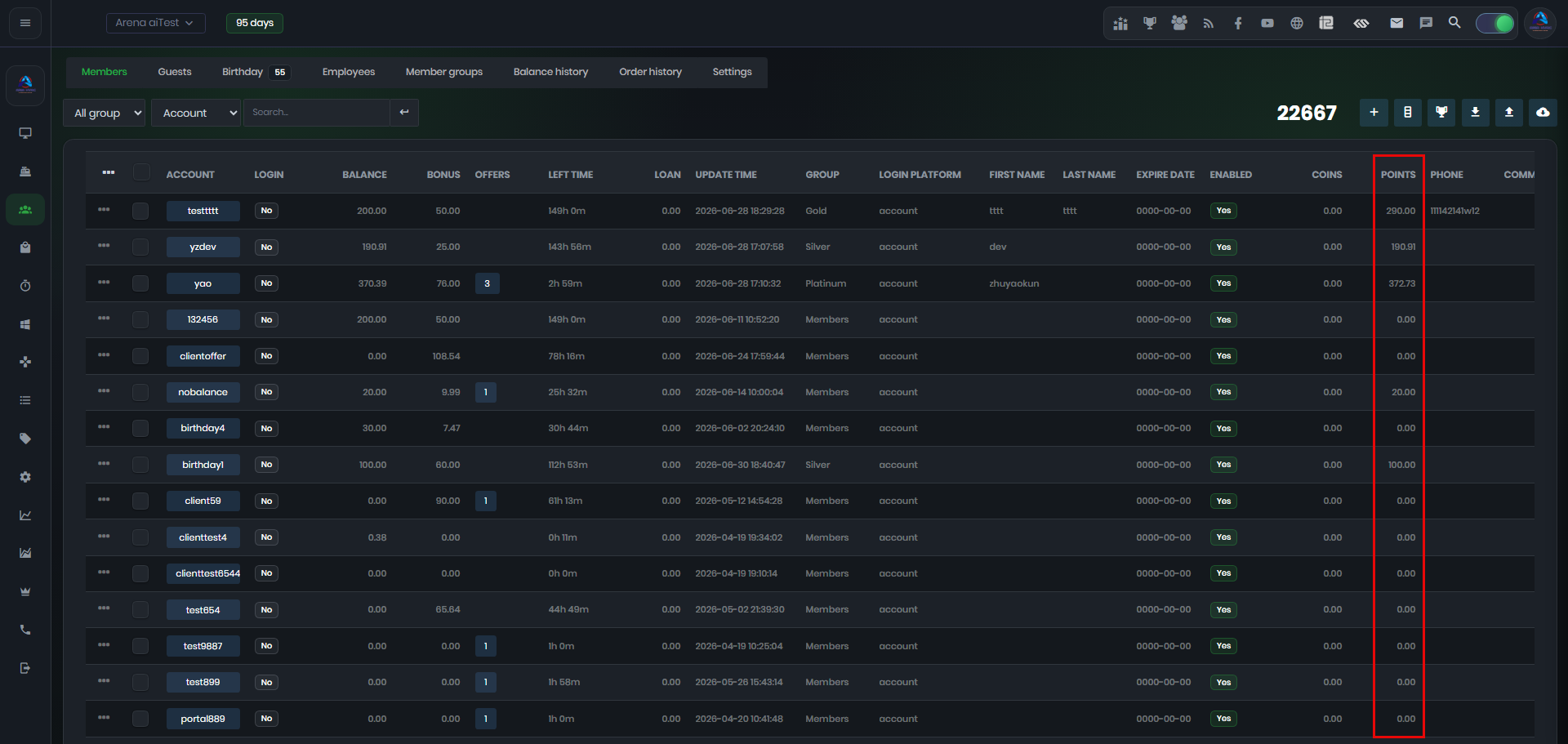
Figure 3
- If the points function is disabled, the points will also be hidden on the Members page.
- Next, add a members group and set the maximum and minimum points.
- You have to create groups for points and discounts at the “member groups”
- Now, you have to “Define price” for the member group you created. To do so, open the “Define price” page and click on the “+” button to set the price, then choose your member group you created earlier then click the “OK” button to save (Figure 4).
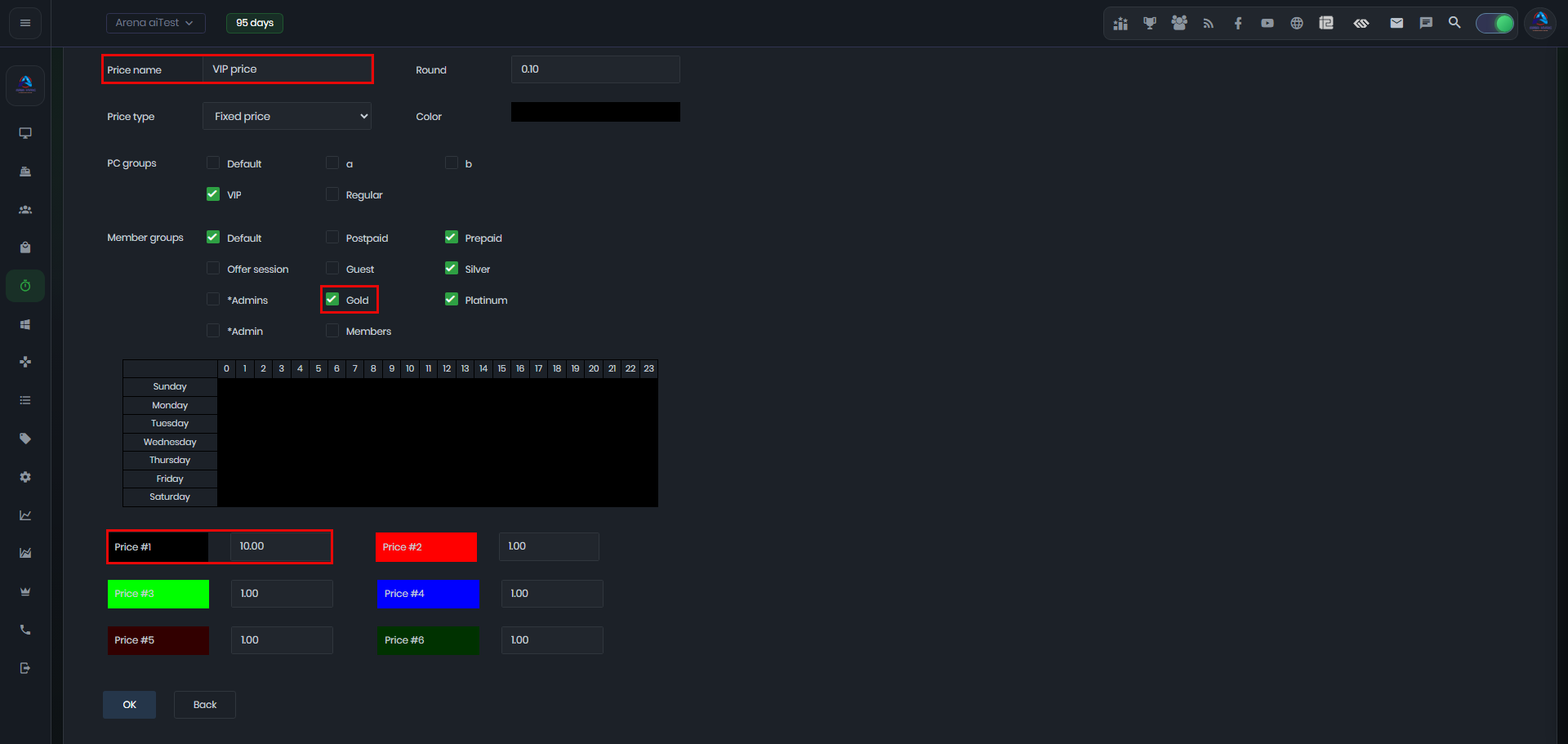
Figure 4
- When a member reaches the minimum point requirement for a higher member group, their group is changed automatically and the price assigned to that group is applied. The automatic group change can only upgrade a member to a higher group; it will not downgrade the member to a lower group. For example, if the VIP group requires 2,000 points, a member will be automatically moved to the VIP group after reaching 2,000 points.
- When the point function is enabled, employees cannot manually change a member's group.
- To change a member's group automatically, add enough points to the member's account to reach the required points for the next group. For example, if a member has 100 points and the next group requires 200 points, add 100 points to trigger the group change.
- The Administrator can manually change a member's group regardless of their current point balance.
- On the client interface, the points total is not displayed; instead the member level is shown along with a progress bar around the avatar, indicating how many points are required to reach the next level. (figure 5).
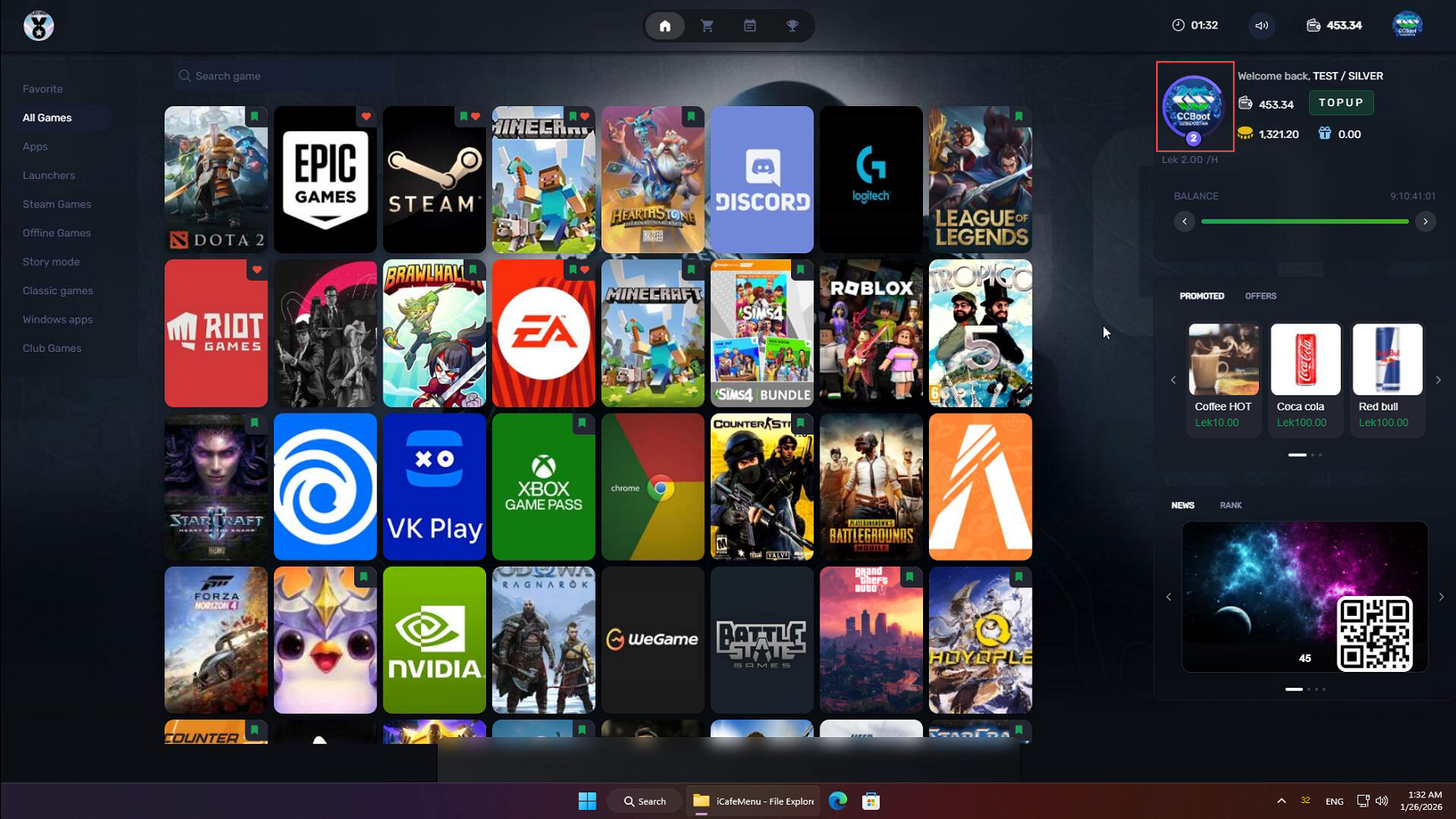
Figure 5
- Levels are based on member group points: the group with the lowest point requirement is Level 1, the next group with higher points becomes Level 2, and so on, depending on how many member groups you create. (Figure 6)
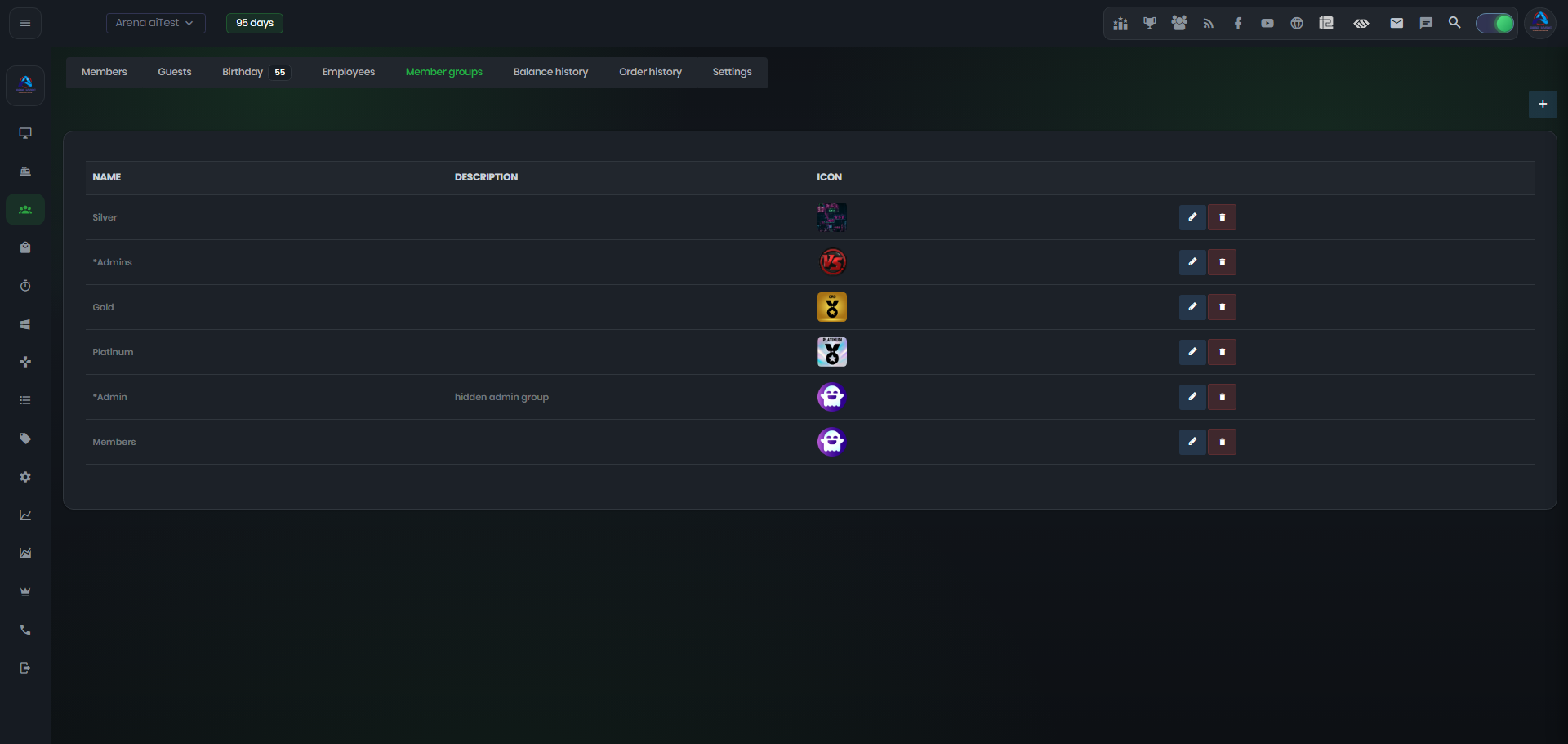
Figure 6